
Working with tables
Tables in HelpNDoc are a versatile way to present structured data or design more advanced layouts within your documentation.
Inserting a Table
To add a table to your topic:
- Open the Insert ribbon tab.
- Click Insert Table in the Items group.
- Choose one of the following options:
- Quick Insert: Move your cursor over the grid and select the desired number of rows and columns;
- Custom Insert: Click Insert Table define the table size and properties manually.
Editing and Formatting a Table

When a table is selected, the Table Tools – Layout ribbon tab becomes available, providing tools to manage and format the table:
- Modify Table Structure: Insert or delete rows and columns, and adjust their layout;
- Reorganize layout: Move rows and columns to quickly adjust the table structure without recreating it;
- Edit cells: Merge or split cells, and control alignment and positioning;
- Adjust table design: Configure borders and other formatting options;
- Sort data: Organize rows based on the content of selected columns;
- Convert to text: Transform the table into plain text using customizable separators.
Accessing Table Properties
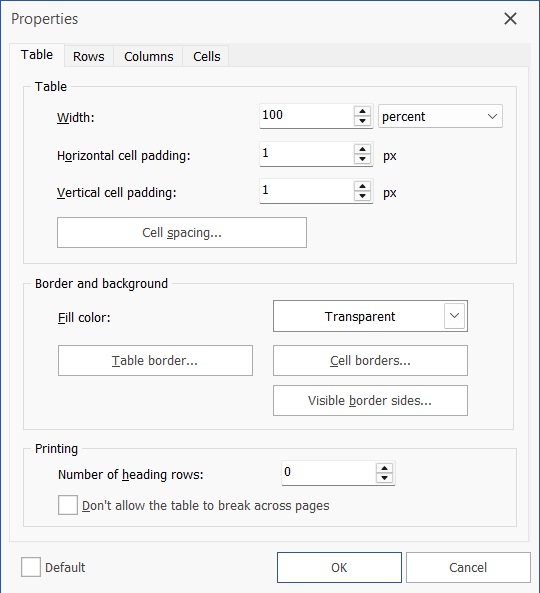
To customize a table's properties, you have two options:
- Right-click the table and select Table Properties from the context menu.
- Select the table, then navigate to the Table Tools – Layout ribbon tab and click the Table Properties button.
From the Table Properties panel, you can adjust various settings such as table alignment, cell spacing, borders, and background colors to enhance the appearance and functionality of your table.
Enabling the Default option saves the current table settings as the default for all future tables created within the project. These table's default settings (such as colors, alignment, borders, and cell spacing) are stored within the HND project file, meaning they are specific to the current project and will not affect other HelpNDoc projects.