The Project Settings panel centralizes the core metadata and configuration that define a HelpNDoc project. These settings apply globally and are used throughout the authoring environment, during generation, and in produced documentation outputs. Properly configuring this panel ensures consistent identification, attribution, and behavior across all formats.
Access project options
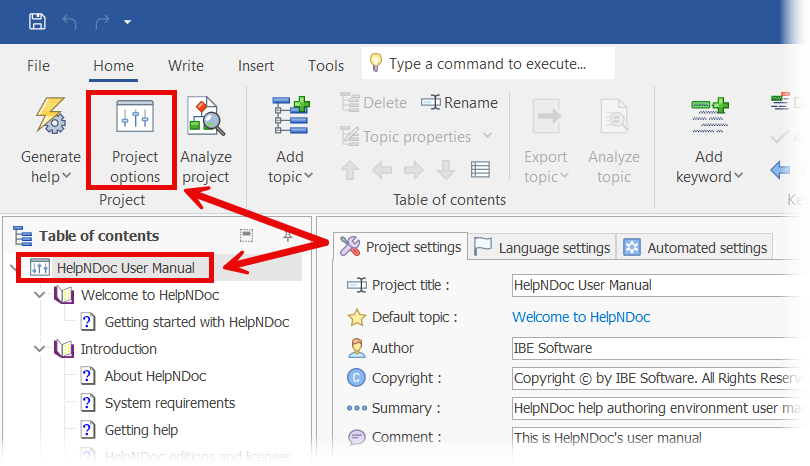
The Project Options panel can be opened in two ways:
- From the Home ribbon tab, click Project options in the Project group.
- In the Table of Contents, select the project topic, which appears as the first (root) item in the list.
Project settings
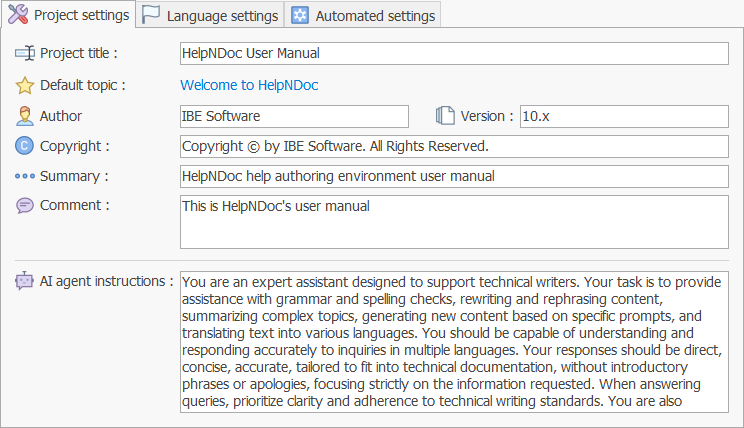
The Project settings section defines the project's identity and descriptive metadata:
- Project title
Specifies the official title of the help project. This value is commonly used in generated outputs, window titles, and documentation headers. - Default topic
Defines the topic that opens by default in generated documentation, such as the main introduction or landing page. - Author
Indicates the primary author or organization responsible for the documentation. - Version
Stores the project's version number, which can be reused in templates, headers, or output metadata. - Copyright
Specifies the copyright notice associated with the project. - Summary
Provides a short description of the project's purpose or scope. This may be used by certain output formats or external tools. - Comment
A free-form field intended for internal notes, project context, or editorial remarks. This content is not typically published.
AI Agent Instructions
The AI agent instructions field allows you to define project-specific guidance for the built-in AI Assistant. These instructions are automatically applied whenever an AI conversation is started while the project is open.
This enables teams to:
- Enforce project-specific terminology and naming conventions
- Define tone, style, or formatting rules
- Constrain AI output to a specific domain or scope
- Reduce post-editing and improve consistency across generated content
By grounding AI interactions in the project's context, these instructions help ensure predictable, relevant, and standards-compliant AI assistance.
Language settings
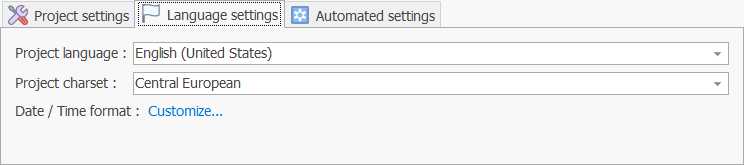
The Language Settings section defines the linguistic and regional parameters used by a HelpNDoc project. These settings influence how text is interpreted, displayed, and formatted across the authoring environment and generated documentation outputs.
Project Language
The Project language setting defines the primary language of the documentation project. It is used to:
- Configure language-aware editing features
- Influence language-specific behaviors in outputs and tools
Selecting the correct project language is essential for accurate proofreading and consistent authoring.
Project Charset
The Project charset specifies the character encoding used by the project. This ensures that special characters, symbols, and accented letters are correctly stored and rendered, especially when working with legacy formats (such as CHM help files) or exchanging content with external systems.
Choosing the appropriate charset helps prevent encoding issues and guarantees text compatibility across outputs.
Date / Time Format
The Date / Time format setting controls how dates and times are displayed when used in the project, templates, or generated documentation. A Customize option allows you to fine-tune formatting to match regional or organizational conventions.
See also: Date and time format settings
Automated Settings
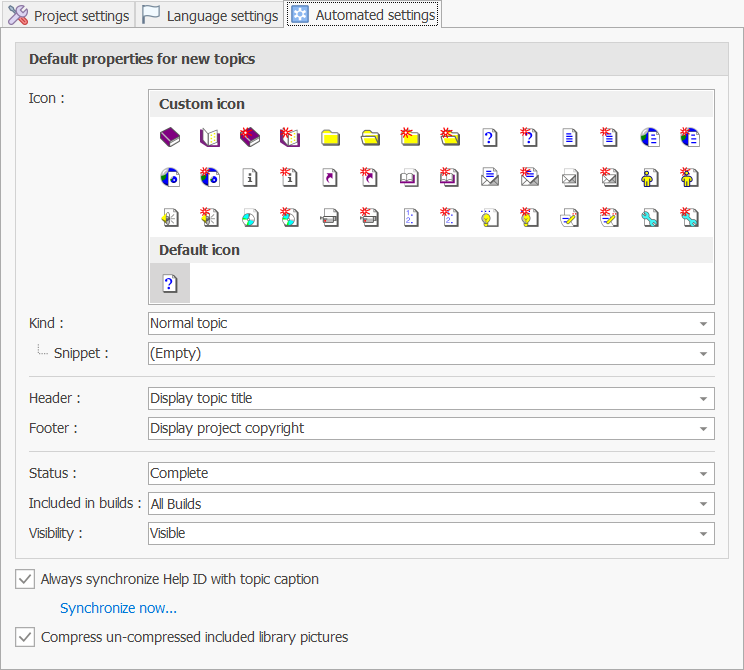
The Automated Settings section groups together options that control default behaviors and automation features in HelpNDoc. These settings help standardize newly created content, maintain consistency across topics, and optimize project resources.
Default Properties for New Topics
This section defines the properties that are automatically applied whenever a new topic is created:
- Icon
Specifies the default icon assigned to new topics in the Table of Contents. - Kind
Defines the default topic type (for example, normal topic). - Snippet
Selects a snippet whose content will be used as the initial content of newly created "Normal" topics. The selected snippet must already be included in the project library. - Header / Footer
Determines which header and footer templates are applied by default. - Status
Sets the initial status of new topics (for example, Complete or Draft). - Included in builds
Controls whether new topics are included in all builds or only specific ones. - Visibility
Specifies whether new topics are visible by default.
Using these defaults ensures that new topics immediately conform to your project's standards.
Synchronize Help ID with Topic Caption
When Always synchronize Help ID with topic caption is enabled, a topic's Help ID is automatically updated whenever its caption changes.
For example, renaming a topic caption to Hello World will update its Help ID to HelloWorld.
- Synchronize now…
Immediately updates all existing topic Help IDs based on their current captions.
See also: Change topic properties
Compress Included Library Pictures
When Compress un-compressed included library pictures is enabled, any uncompressed images in the project library (such as BMP files) are automatically converted to a non-destructive PNG format inside the HND project file.
This reduces disk usage and memory consumption while preserving image quality.
By configuring the Automated Settings section, you can streamline topic creation, enforce content consistency, and optimize project resources with minimal manual effort.