Reference items allow you to insert reliable, format-aware cross-references to other topics in your project without creating hyperlinks. They are designed for documentation where references must remain accurate, readable, and consistent across multiple output formats.
Unlike links, a Reference item is replaced at build time by text generated from user-defined templates. This ensures that each output format displays the reference in the most appropriate way, while remaining fully synchronized with the referenced topic.
How Reference Items Work
When you insert a Reference item, you select a target topic and define how the reference should be rendered for different output families:
- HTML-based documentation (CHM, HTML, ePub, Kindle, Qt Help, Markdown)
A dedicated HTML reference format is used. This format can include the %topic_title% placeholder, which is automatically replaced by the referenced topic's title at build time. - Report-based documentation (Word DocX, RTF, PDF)
A separate report reference format is applied. In addition to %topic_title%, it can include %topic_page_nb%, which is resolved to the actual page number of the referenced topic in the final document.
For Word DocX and RTF outputs, page numbers are exported as fields, allowing them to update automatically when the document is printed or when fields are refreshed in Word.
Insert a Reference
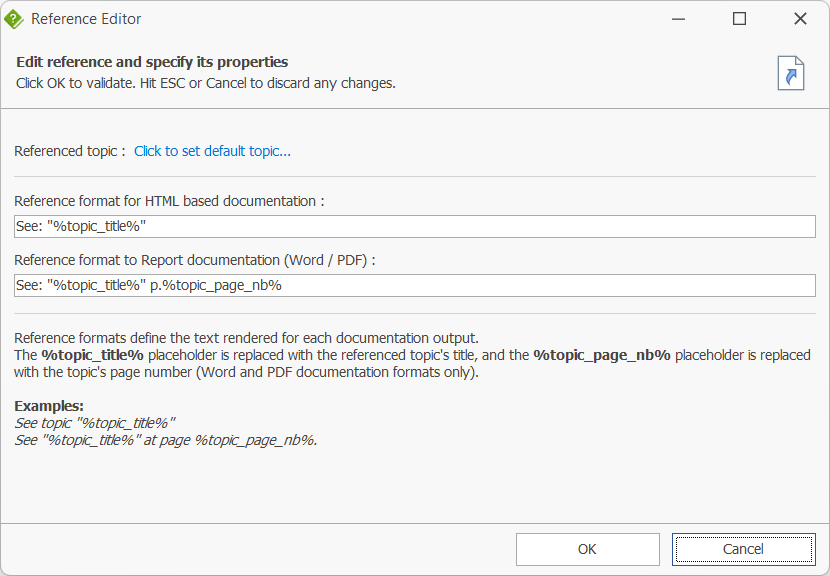
Reference items can be inserted directly from HelpNDoc's ribbon interface. To add one, open the Insert ribbon tab, locate the Links group, and click Insert reference. The Reference Editor dialog then opens, allowing you to select the target topic and define how the reference should be rendered for each output type. Once validated, the Reference item is inserted at the cursor position in the Topic Editor and will be automatically resolved during the documentation build process.
Editing Reference Properties
To edit a Reference item, simply double-click it in the Topic Editor; this opens the Reference Editor dialog where you can modify its settings:
- Referenced topic
Defines which topic is being referenced. - Reference format for HTML-based documentation
Specifies the text template used for HTML-like outputs. - Reference format for report documentation
Specifies the text template used for Word DocX, RTF, and PDF outputs, including optional page numbers.
These formats give you full control over how references appear, ensuring consistency with your writing style and documentation standards.
Sample Reference Formats for HTML and Report Outputs
Reference items can be formatted differently depending on the output type, allowing you to tailor how cross-references are displayed in online and printed documentation. Below are some common examples for each format.
HTML-based documentation examples
- See: "%topic_title%" → See: "Installation Requirements"
- Refer to %topic_title% for details → Refer to Installation Requirements for details
- For more information, see "%topic_title%" → For more information, see "Installation Requirements"
- Related topic: %topic_title% → Related topic: Installation Requirements
Report-based documentation examples (Word / PDF)
- See: "%topic_title%" p. %topic_page_nb% → See: "Installation Requirements" p. 42
- Refer to %topic_title%, page %topic_page_nb% → Refer to Installation Requirements, page 42
- See section "%topic_title%" on page %topic_page_nb% → See section "Installation Requirements" on page 42
- For details, see "%topic_title%" (p. %topic_page_nb%) → For details, see "Installation Requirements" (p. 42)
These examples illustrate how Reference items can be customized to match your documentation style while automatically adapting to the requirements of each output format.