You can choose how your library items (pictures, movies, documents…) are handled by HelpNDoc: they can be included within your project, or they can be dynamically included at generation time, when you choose to build your final documentation files. Using the second option, you provide a path for your media items so that HelpNDoc can find and include them when needed. This is very useful to be able to handle those items from outside of HelpNDoc, share them with a third party software…
However, a problem might occur if those items need to be moved on your hard drive or networked path: to make sure HelpNDoc can still find your media elements, you’ll need to manually update all of them one by one. As this can be a very long, tedious and error-prone task, this is great use case for HelpNDoc’s powerful script editor. Let’s see how we can leverage it to quickly update the whole library in a few seconds.
HelpNDoc’s script editor to the rescue
All editions of HelpNDoc include the script editor: you can use it to write instructions from the HelpNDoc API to automate repetitive tasks.
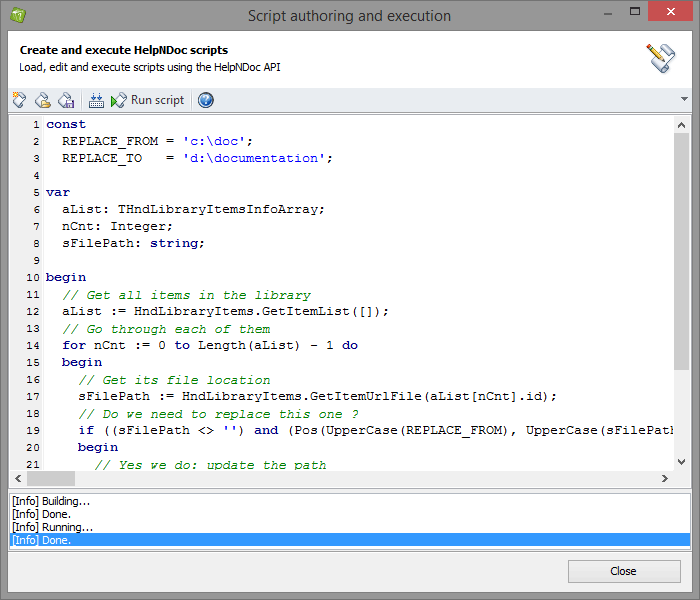
Once you have opened the project you need to update and launched HelpNDoc’s script editor, you can begin typing the script we will use to update the library:
const
  REPLACE_FROM = 'c:\doc';
const
  REPLACE_TO   = 'd:\documentation';

var aList: THndLibraryItemsInfoArray;
var nCnt: Integer;
var sFilePath: string;

begin
  // Get all items in the library
  aList := HndLibraryItems.GetItemList([]);
  // Go through each of them
  for nCnt := 0 to Length(aList) - 1 do
  begin
    // Get its file location
    sFilePath := HndLibraryItems.GetItemUrlFile(aList[nCnt].id);
    // Do we need to replace this one ?
    if ((sFilePath <> '') and (Pos(UpperCase(REPLACE_FROM), UpperCase(sFilePath)) > 0)) then
    begin
      // Yes we do: update the path
      sFilePath := StringReplace(sFilePath, REPLACE_FROM, REPLACE_TO, [rfIgnoreCase]);
      // Save it
      HndLibraryItems.SetItemUrlFile(aList[nCnt].id, sFilePath);
    end;
  end;
end.
You simply need to change the REPLACE_FROM and REPLACE_TO constants to make sure HelpNDoc finds and replaces the correct values, then hit “Run script” and let HelpNDoc do the hard work for you: in a few seconds, your whole library will be updated to use your new path.
Here is how this script works:
- It gets a list of all library items in the opened project
- For each if those items, it checks if it is linked to a file path it needs to update
- If it is, it updates the path and moves on to the next item
Other ways to leverage HelpNDoc’s API to save time
Almost all aspects of HelpNDoc can be automated using HelpNDoc’s API. We have seen how we can automatically update all library items, but it can also use it to automate help and documentation creation, or export Help IDs and Help Context numbers for your developers and much more…
You can review HelpNDoc’s API documentation to learn more about the capabilities of HelpNDoc’s powerful script editor.