A well-designed documentation website needs a clear and focused table of contents. Readers should be able to scan its navigation and immediately understand where to begin, without having to work through pages that are useful but not part of the main documentation journey.
Yet many projects still need standalone pages such as a privacy policy, terms of service, legal notices, a cookie policy, an accessibility statement, or copyright information. These pages must be published and easy to reach from a footer or a contextual hyperlink, but they do not necessarily belong beside tutorials, procedures, and reference topics in the main navigation.
HelpNDoc provides an elegant solution: a topic can be generated normally while remaining hidden from the published table of contents. This makes it possible to keep supporting pages available wherever readers need them, without compromising the clarity of the documentation structure.
![Hide topics from table of contents [hide-from-toc] [Featured]](/news-and-articles/2026-07-24-how-to-publish-documentation-topics-without-showing-them-in-the-table-of-contents/images/hide-topics-from-toc.jpg)
🌐 Publish More Content Without Cluttering Navigation
A focused table of contents guides readers through the documentation, while standalone pages remain available through carefully placed links.
The table of contents is one of the most important parts of any HTML documentation website. It communicates the structure of the project, highlights the most useful entry points, and helps readers move between related subjects. As a project grows, however, placing every published page in that navigation can make it unnecessarily long and harder to scan.
Some pages serve a different purpose. A privacy policy may be linked from the footer of every page. Terms of service may only need to appear beside a registration or download link. A legal notice, copyright statement, accessibility statement, or cookie policy may need a permanent URL without becoming part of the reader’s normal learning path.
The same principle can apply beyond legal content. A teacher may publish an optional glossary page linked from individual lessons. A student may provide supporting research material through a direct reference. A technical writer may create a short compatibility note that is only relevant from one procedure. A product team may include an acknowledgements page or a complete list of third-party licenses accessible from an “About” topic.
In each case, the page remains part of the generated documentation, so it benefits from the same styling, branding, hyperlinks, and publishing workflow as every other topic. Only its appearance in the table of contents changes. This is much cleaner than maintaining separate HTML files by hand, and it preserves HelpNDoc’s central advantage: one structured project that can be published to multiple documentation formats.
Readers can reach these standalone pages through hyperlinks to specific topics, links added to an HTML template, or direct topic URLs. Because HelpNDoc manages the topic and its identifier inside the project, authors can continue editing, reviewing, and generating it alongside the rest of their content.
⚙️ Two Simple Ways to Create Standalone Pages in HelpNDoc
HelpNDoc offers two practical approaches, depending on whether standalone pages are scattered throughout the project or managed as one organized group.
1️⃣ Alternative 1: Hide Each Standalone Topic Individually
The most direct approach is to create each page as a normal HelpNDoc topic and set its visibility to “Hidden from table of contents”. The topic can remain anywhere in the project’s authoring structure, exactly where it is most convenient for the writer.
Start by creating a normal topic for the page and enter its content in the topic editor. Select that topic in the table of contents, open its topic properties from the Home ribbon or its right-click menu, then change its visibility to “Hidden from table of contents”.
This setting is deliberately different from making a topic completely hidden. A topic hidden from the table of contents is still generated and can still be linked to, but it is omitted from the navigation shown to readers. HelpNDoc has supported this behavior specifically to let authors publish accessible pages without displaying them in the generated TOC.
Repeat the same operation for any other standalone topic. This method works particularly well when the pages belong to different parts of the authoring structure. For example, an optional glossary can remain near the training material it supports, while a legal notice can remain near project-level information.
Once the topics are ready, create links to them using HelpNDoc’s built-in hyperlink tools. Choosing a specific HelpNDoc topic as the destination is preferable to manually entering a generated filename because HelpNDoc can maintain the internal relationship and produce the appropriate link for the selected output format.
2️⃣ Alternative 2: Group Them Below One Hidden Parent Topic
When several standalone pages form a natural group, a cleaner approach is to create a parent topic such as “Legal”, “Policies”, or “Additional Information”, set that parent to “Hidden from table of contents”, and place the related pages beneath it as normal child topics.
HelpNDoc’s table of contents editor uses a flexible tree structure, so topics can be moved and organized freely. Create the parent topic, change its visibility to “Hidden from table of contents”, then create or move the privacy policy, terms of service, legal notice, and related pages beneath it. The hidden parent branch is omitted from the generated TOC, while its child topics remain generated and available through links.
This organization keeps the HelpNDoc project especially tidy. Authors can expand the hidden parent whenever they need to review or update those pages, while readers continue to see a concise navigation structure. It is a useful separation between the authoring table of contents, which can organize every topic needed by the project team, and the published table of contents, which should contain only the navigation that helps the audience.
HelpNDoc also makes hidden topics easy to manage in larger projects. The table of contents can be filtered by topic properties, including visibility, so authors can quickly locate topics that are visible, completely hidden, or hidden only from the generated TOC.
Both approaches keep standalone pages inside the same HelpNDoc project, where they can be edited, linked, reviewed, and published alongside the rest of the documentation. The next step is to decide whether those topics should also appear in document-based outputs such as Word or PDF.
📄 What About Word, PDF, and Other Documentation Formats?
Hiding a topic from an HTML table of contents does not necessarily exclude it from document-based outputs such as Word or PDF.
![Conditional topic generation [conditional]](/news-and-articles/2026-07-24-how-to-publish-documentation-topics-without-showing-them-in-the-table-of-contents/images/conditional-topic-generation.jpg)
A topic marked “Hidden from table of contents” is still generated. This is exactly what makes it useful for HTML, CHM, or Markdown pages reached from a footer or direct link. However, the same topic may also appear as a normal section when HelpNDoc generates a Word document, PDF manual, or eBook.
When those pages should only be published in HTML-based documentation, use conditional topic generation in addition to the visibility setting. HelpNDoc provides two practical ways to control this:
- You can assign the topic to specific build tags, such as HTML or CHM, so it is generated only by the relevant builds. The conditional topic generation guide explains how to configure these rules.
- Alternatively, assign a dedicated topic status and configure only the appropriate builds to generate topics with that status. This can be useful when several standalone pages share the same publishing rule. See the topic status documentation for details.
The new Generation Matrix makes these rules easy to verify. It shows at a glance whether a topic will be generated in each HTML, Word, PDF, Markdown, or custom build, and explains why.
📎 Add Supporting Files Outside the Table of Contents
Not every supporting file needs to become a HelpNDoc topic. Existing documents and resources can be delivered alongside the generated documentation without adding anything to its table of contents.
![Build assets [build-assets]](/news-and-articles/2026-07-24-how-to-publish-documentation-topics-without-showing-them-in-the-table-of-contents/images/build-assets.jpg)
A standalone topic is the best choice when content such as a privacy policy or legal notice should use the documentation’s normal layout and remain editable inside HelpNDoc. In other cases, the required content may already exist as a separate HTML page, PDF document, spreadsheet, form, source-code sample, downloadable archive, or other file.
For resources that should be shared by every project using the same HTML-based template, they can be included as template assets. HelpNDoc copies these assets alongside the generated documentation, making this approach useful for organization-wide files shared across multiple projects, such as a standard legal page, accessibility document, copyright file, or downloadable corporate policy.
For files that belong to a particular project or output, use build assets. Each build maintains its own assets and automatically writes them alongside its generated output while preserving their relative paths. This makes it possible to include a project-specific legal document with an HTML website, distribute supplementary files beside a Word or PDF manual, or package forms, examples, and reference documents with any other build.
For PDF builds, a build asset can also be marked “Attach to document”, which embeds the file directly inside the generated PDF. A privacy statement, license agreement, spreadsheet, source file, or other supporting document can therefore travel with the manual as an attachment without becoming a visible chapter in its table of contents.
These options complement topics hidden from the TOC. Use a hidden topic when the content should remain part of the authored documentation, and use an asset when an existing file only needs to be delivered with the appropriate output. In both cases, HelpNDoc keeps supporting content available without unnecessarily expanding the reader-facing navigation.
✅ One Project, More Publishing Freedom
A topic does not need to appear in the table of contents to remain useful, accessible, and professionally published.
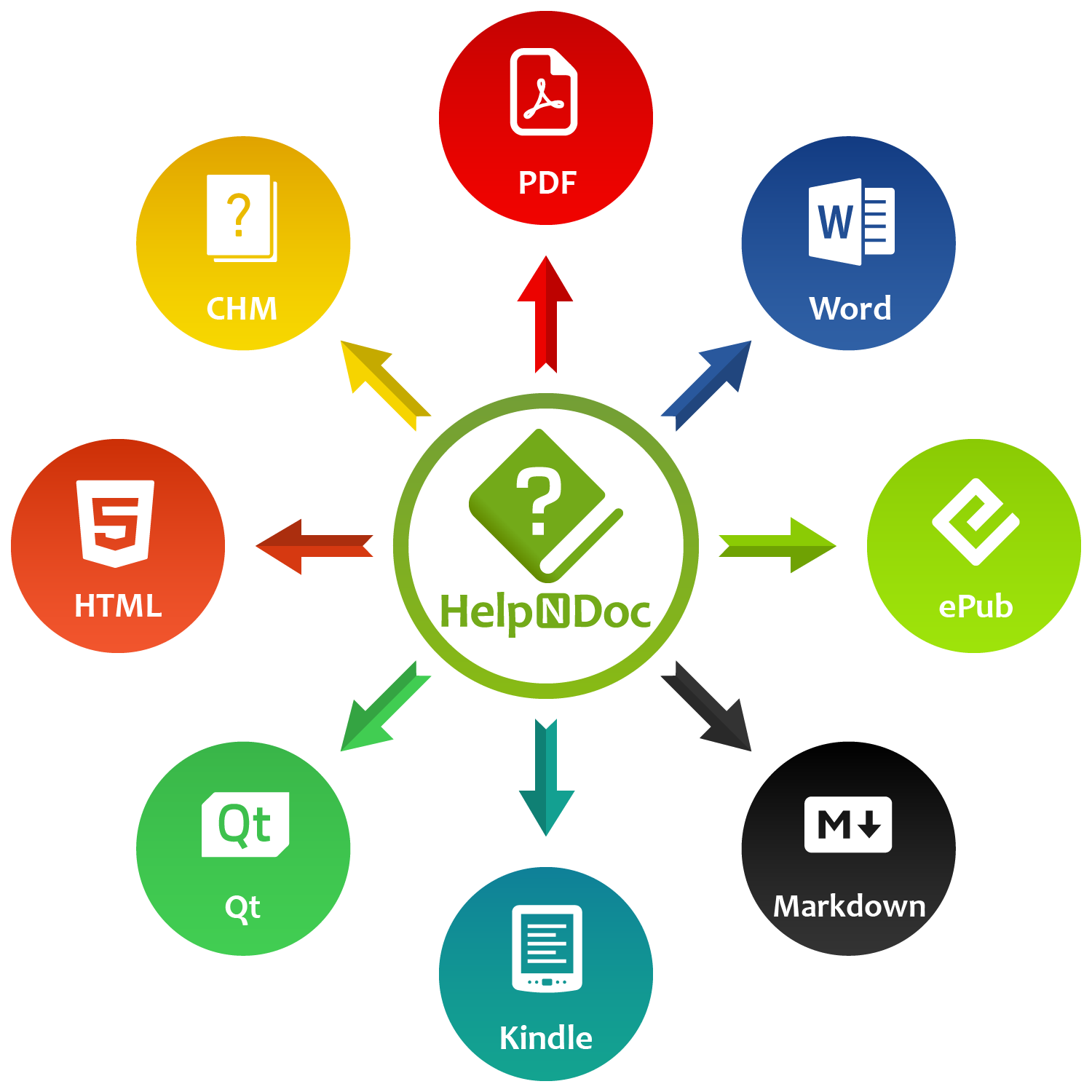
With HelpNDoc, standalone topics can stay available through direct links while remaining outside the reader’s main navigation. Conditional generation then ensures that those topics appear only in the appropriate HTML, Word, PDF, Markdown, or custom builds.
When supporting content already exists as a separate file, template assets and build assets provide another flexible option, allowing it to be delivered alongside generated documentation or embedded directly in a PDF.
The result is one organized project with cleaner navigation, precise output control, and all the supporting content each audience needs.
Explore HelpNDoc and discover how much control can fit inside a documentation workflow that still feels simple, then download HelpNDoc for free and start building cleaner, smarter, multi-format documentation today.
Want to create great documentation?
HelpNDoc is free, fully functional, and easy to use.
Produce your first multi-format documentation in the next minute or so.