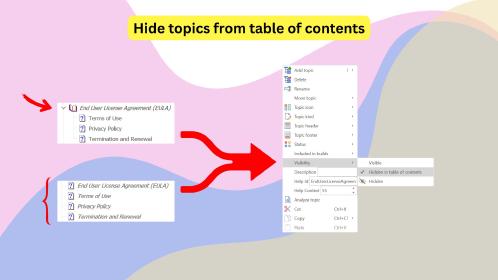
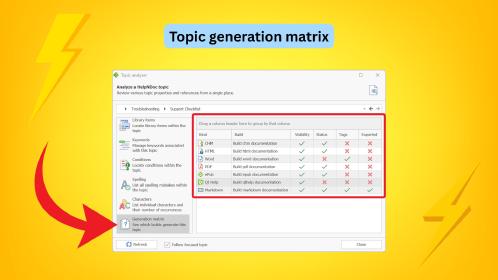
Suppose you’re refreshing a manual that has grown through several product releases. The instructions are sound, but the presentation tells its age: one note is blue, another is gray, and a third has somehow acquired a different font. Then the new brand guidelines arrive.
You could work through the topics and tidy each passage. But it would be much more satisfying to make those decisions once and have them carry through the project. HelpNDoc styles let you give recurring content a shared appearance, with room for individual touches where they help. The work you do to improve today’s manual also makes its next redesign easier.
🎨 Give your notes a recognizable appearance
Start with something readers encounter often, such as a note, a heading, or a command name. A named style turns its formatting into a choice you can reuse.
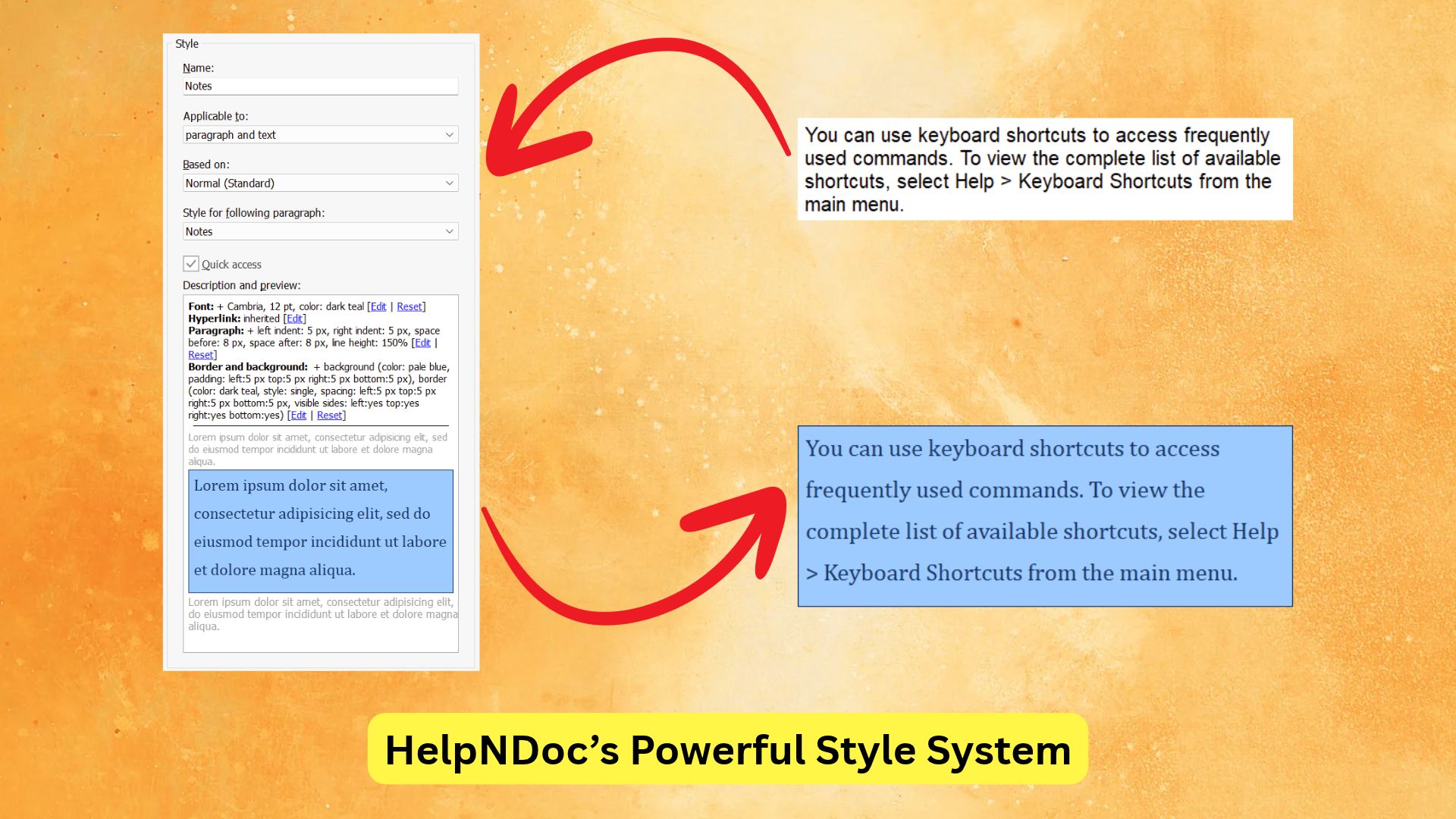
If you’ve used styles in Microsoft Word, the principle will feel familiar. HelpNDoc supports text styles, paragraph styles, and styles combining both. A command name might need a particular font; a note might also need spacing, indentation, and a border. You define those properties in the styles editor, then apply the style wherever that kind of content appears.
For the older manual, you could create a “Note” style with comfortable spacing and a discreet colored border. As you apply it to existing notes, their presentation becomes consistent. The notes can say entirely different things while sharing the same design.
The payoff comes when that design changes. Update the Note style’s border color or font, and every passage using it across every topic follows the shared definition. You can try a new look without opening each topic to repeat the same edits.
Note: These are styles for the content inside your topics. Documentation templates customize the surrounding presentation, such as navigation, covers, headers, and footers. A rebrand may involve both, but your topic text and paragraph formatting belong in project styles.
✍️ Keep the details that make a passage work
Consistency doesn’t require every passage to look identical. You can keep shared styles and still make local formatting choices.
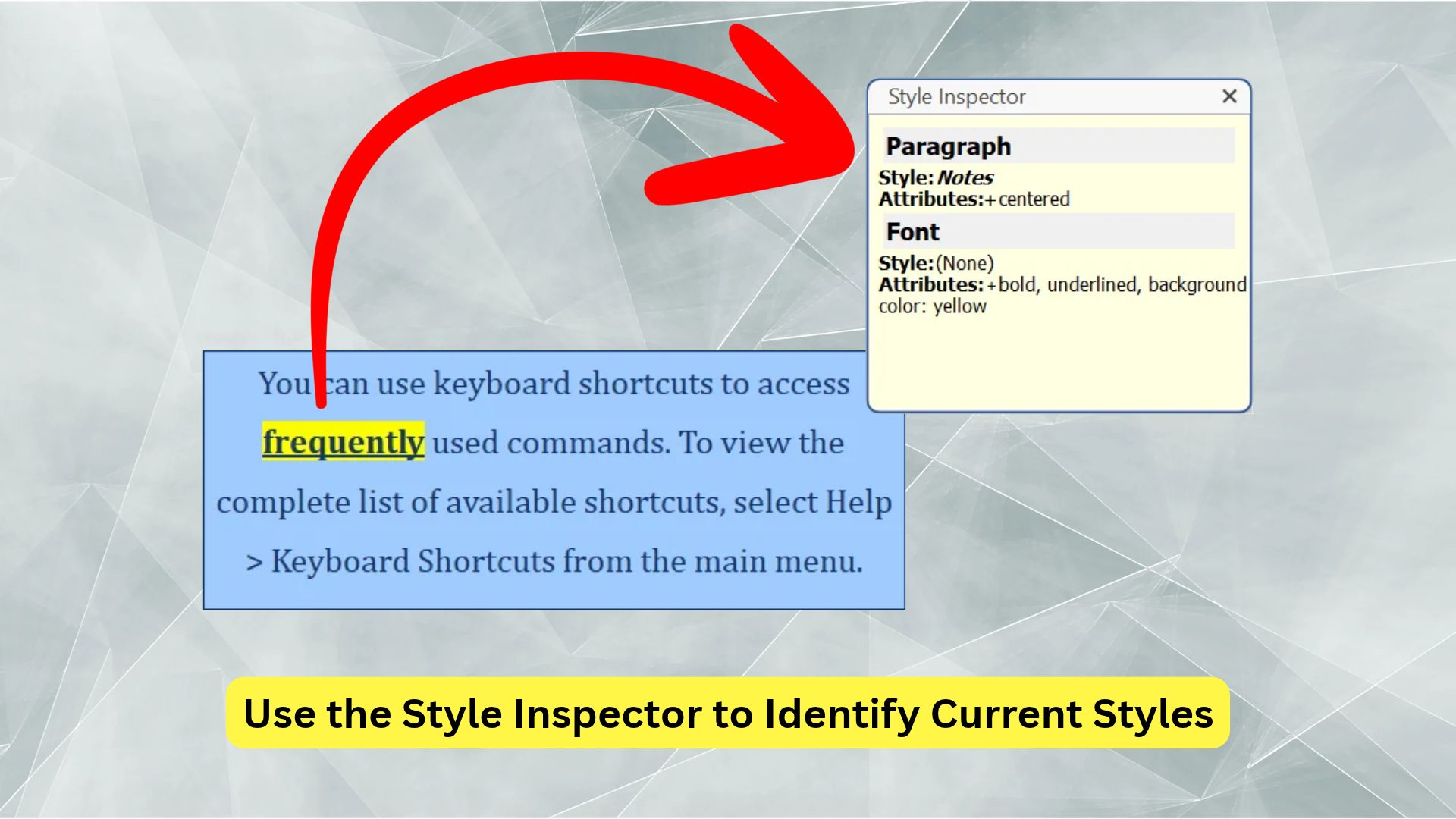
Perhaps one note needs the words “before restarting” in bold, or an introductory paragraph reads better centered. You can apply bold, colors, alignment, and other formatting manually without redesigning the shared style for every other occurrence. Keep recurring design decisions in styles and use local changes for the exceptions that earn their place.
That distinction also helps when a passage looks unexpectedly different. Under the Write ribbon tab’s Change Styles popup button, Style inspector identifies the current text and paragraph styles. Clear format helps remove unwanted formatting. Together, they give you somewhere useful to start when copied content refuses to fit in.
One detail can save some head-scratching: applying a style normally retains custom font attributes. To reset those attributes when applying a style, hold Ctrl while you apply it.
When that carefully formatted passage starts appearing in several topics, there’s an opportunity to share more than its appearance.
🧩 Give repeated explanations a shared home, too
Some passages need more than a consistent appearance: their wording needs to stay consistent as well. That’s where styled snippets become useful.
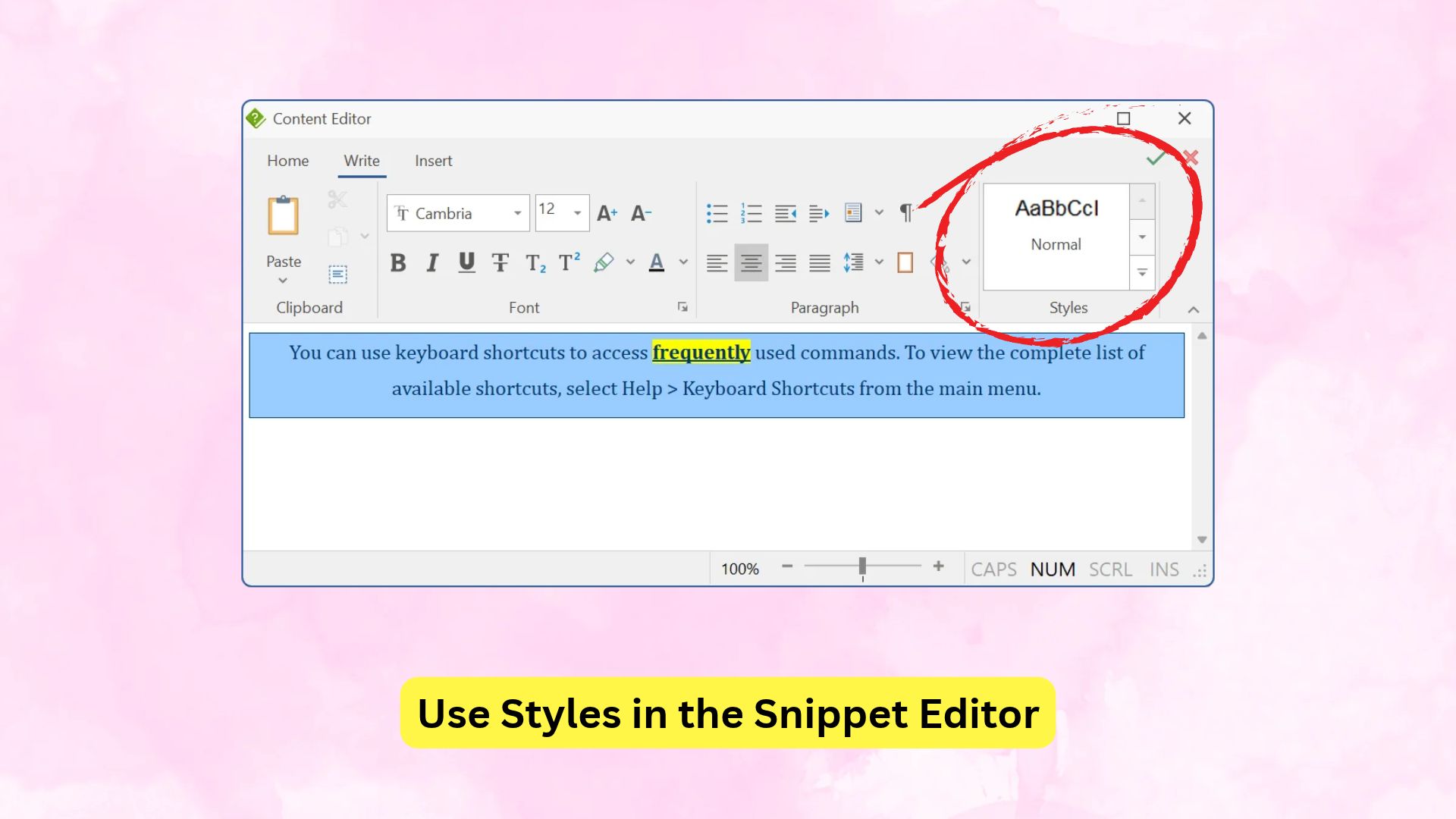
Suppose several installation topics remind readers to back up their settings before upgrading. A style can make all those reminders look alike; a snippet lets you maintain the reminder itself in one place. Snippets are reusable rich text elements, and they can use the same project styles as your topics.
You can even start with content you’ve already written: select the reminder, right-click, and choose Convert to snippet…. You can replace the selected passage with the new snippet, then reuse it wherever readers need the same reminder.
Apply your Note style in the snippet editor, and the reminder participates in the same design as the rest of the manual. When you generate documentation, its appearance follows the current project style. You can revise the shared wording and its styling without maintaining separate copies in every topic.
That takes care of the reminders you reuse from now on. The older manual may still have scattered notes waiting to be brought into the same design.
🔎 Advanced use: find the formatting already in your project
You don’t need to remember where every old font or unusual paragraph appeared. Find and Replace can search by style name, font properties, or paragraph properties.
For that older manual, this offers a practical way into the cleanup. Search for the font used in the old notes, review the matches, and apply your Note style to the passages that belong together. Searching by formatting finds candidates; you still decide whether each passage is a note, a warning, or something else.
Once styles are established, searching by style name helps you locate their uses across the project. Before retiring an old style or revising a recurring content type, you can see where it appears.
With those passages using shared styles, you can also reconsider how they should look when the manual reaches different readers.
📚 Advanced use: let each edition have its own look
A printable manual and a partner’s help site may need different visual choices. Each build in the generation build list can override any project style.
Your Note style could use restrained colors and different spacing in a PDF edition, while a partner edition uses that partner’s brand colors. The authored topics remain shared; the build supplies its own style values when you generate that output. It’s one way of customizing individual builds to suit an output format, audience, or brand.
To give a build its own styling, select it and open Styles overrides in its customization settings, then choose the styles to change.
Those variations can grow with your documentation. You can get started long before you need a partner edition or a complete rebrand.
🌱 Try it on one part of your existing content
The mismatched notes in that older manual don’t all need fixing today. A few well-chosen passages are enough to try a more manageable approach.
Try creating a note or warning style, apply it to those passages, then adjust its color or spacing. As they change together, you’ll have a useful starting point for the rest of the manual, and one fewer design decision to repeat by hand.
If you’re new to HelpNDoc, download it and bring a few familiar passages into a project. Start with something you’ve already spent time tidying; that’s where the difference is easiest to appreciate.
Want to create great documentation?
HelpNDoc is free, fully functional, and easy to use.
Produce your first multi-format documentation in the next minute or so.