Step-by-step guide: How to delete a library item
When a library item isn’t used anymore, it may be removed from the project’s library: deleting a library item will remove it from your library thus saving space in your project file.
When you need to remove a library item, there are two easy ways to delete it:

Option 1
Select the item in your library panel and then click Delete in the Library section of the Home ribbon tab.
This displays a window, confirming that you’d like to permanently delete the item. Click Yes.
This removes the item from your library panel.
Option 2
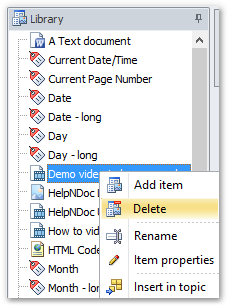
Right-click the item in your library panel that you’d like to remove.
This displays a menu. Click Delete.
This displays a window, confirming that you’d like to permanently delete the item. Click Yes.
This removes the item from your library panel.
The library is a central place where reusable items are managed: deleting an item from the library is a fast and easy way to trim it and keep it under control.