Follow the guides to learn how to use HelpNDoc and be more efficient when creating help and documentation projects.
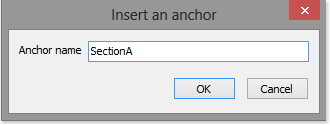
How to insert anchors ›
HelpNDoc offers you the option of inserting anchors in your topics to further enhance the usefulness of your hyperlinks. By default, hyperlinks take readers to the beginning of specific topics. When you insert anchors within topics you get the added benefit of being able to create hyperlinks to those embedded anchors. As a result, readers can be taken to exact locations within topics, rather than the beginning of topics.
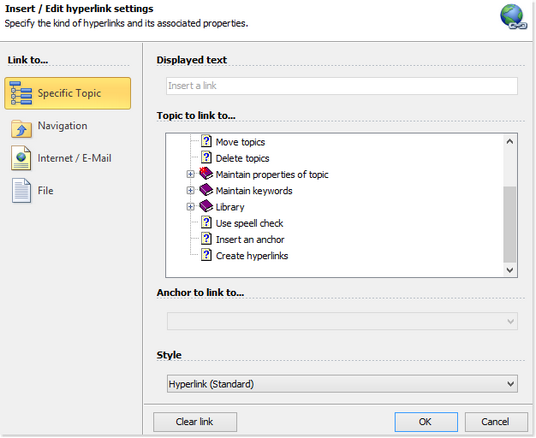
How to create and update hyperlinks ›
Using hyperlinks can help you enhance the value of your documentation by putting readers in control and allowing them to interact with your documentation. Rather than forcing readers through documentation linearly from beginning to end, HelpNDoc makes it easy for readers to click links to access information they are interested in. Using hyperlinks can also help readers follow steps of a process.
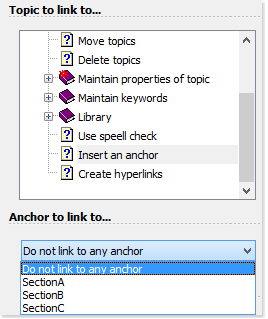
How to define hyperlinks to specific topics ›
HelpNDoc makes it simple for you to make your documentation more interactive by giving readers hyperlinks so they can learn more about topics that they are interested in and follow steps of a process. You can select any topic from your table of contents to establish a hyperlink to that topic. You can also select to link to anchors embedded within your topics.
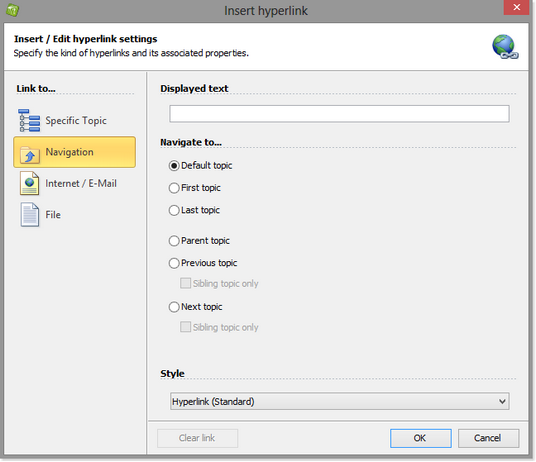
How to define hyperlinks to relative topics ›
HelpNDoc allows you to define hyperlinks that are relative to the position of the topics that readers are viewing when they click the hyperlinks. For example, hyperlinks defined to take readers to the “next topic” would display the topics that immediately follow the ones readers are currently viewing. This permits you to maintain the relative position of hyperlinks when you change the order of topics without needing to update the specific hyperlinks.
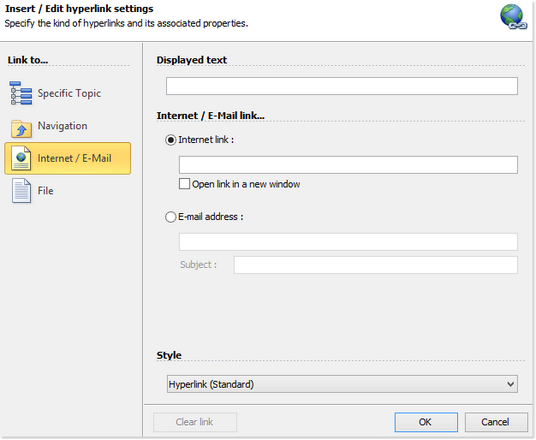
How to define hyperlinks to web pages and e-mail ›
HelpNDoc makes it easy to create hyperlinks that display web pages and create e-mail messages. Simply enter or paste in the address that you’d like to use. You can also define the subject heading for the e-mail message.
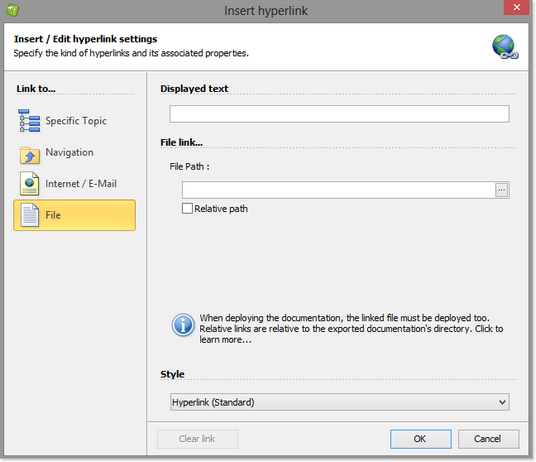
How to define hyperlinks to your files ›
To improve the usefulness of your documentation, you can provide hyperlinks to supplemental files that are located outside your documentation. You can display these documents or make them available to download.