Follow the guides to learn how to use HelpNDoc and be more efficient when creating help and documentation projects.
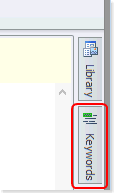
How to access the keywords panel ›
HelpNDoc’s user interface is very flexible: it is possible to show or hide some panels to save some space and avoid distractions. Let’s see how to access the keywords panel.
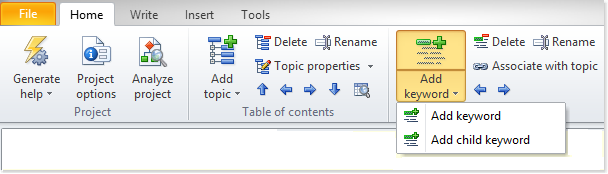
How to create a keyword ›
You can use keywords to index your topics to help users to find the information they are looking for. When you create keywords in HelpNDoc, users can access them on the Index tab when you publish CHM and HTML versions of your documentation.
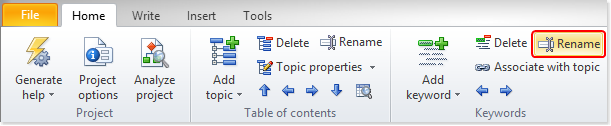
How to rename a keyword ›
HelpNDoc gives you tremendous flexibility in updating keywords: once a keyword has been added and associated with some topics, it is possible to rename it without losing anything.
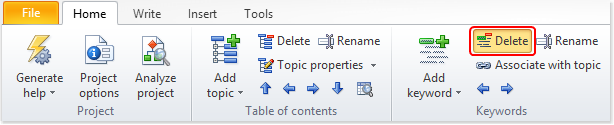
How to delete a keyword ›
When a keyword becomes obsolete, it is possible to delete it from the keywords list. This removes the keywords as well as its association with topics.
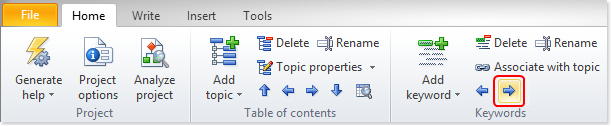
How to define parent and child keywords ›
Keywords are displayed in alphabetical order in your keywords panel. To help users more readily find information when they use your CHM and HTML documentation, HelpNDoc allows you to define an organizational hierarchy by forming parent-child relationships among your keywords.
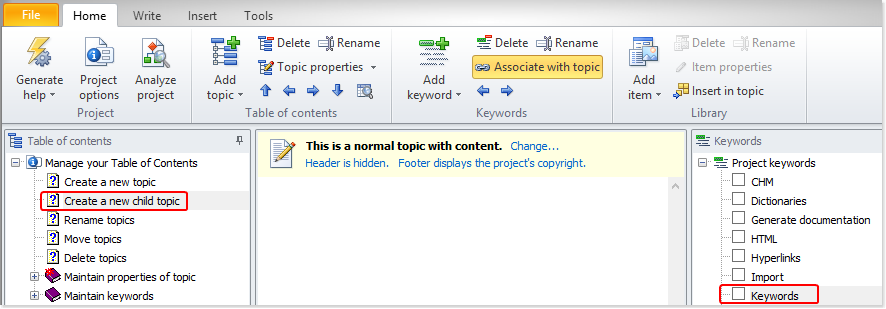
How to associate keywords with topics ›
To allow users to take full advantage of keywords in your CHM and HTML documentation, it’s recommended that you create an association between your keywords and each relevant topic. There’s one simple step for creating this association, and it’s easy to remove the association. Both are outlined below.
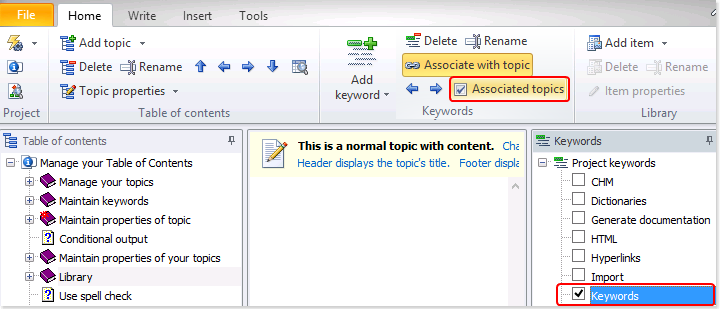
How to manage the association between a keyword and topics ›
After you create keywords, they are available on the Index tab on published documentation on both the CHM and HTML documentation formats. Providing keywords helps users find the information they’re looking for as they can be associated with multiple topics to group them together when they share a specific theme.