Follow the guides to learn how to use HelpNDoc and be more efficient when creating help and documentation projects.
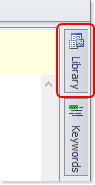
How to access the library panel ›
Your library in HelpNDoc is a central storage area for your entire project where you maintain your multimedia files including images, photographs, videos, documents, HTML code, variables and snippets.
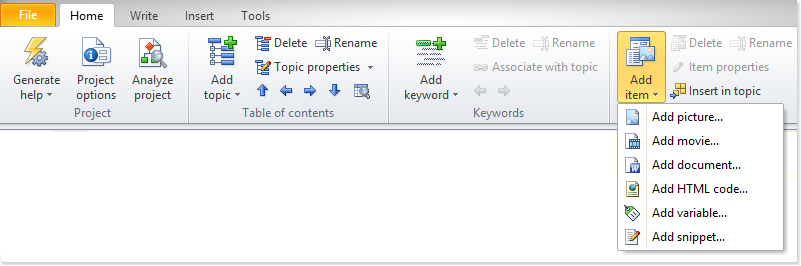
How to add an item to the library ›
Your library in HelpNDoc is a central storage area where you maintain your multimedia files for your entire project: once added to the library, items can be used throughout the documentation project.

How to rename a library item ›
Once items are added to the library, they can easily be renamed without losing any other property such as where they are added in your project’s topics.

How to delete a library item ›
When a library item isn’t used anymore, it may be removed from the project’s library: deleting a library item will remove it from your library thus saving space in your project file.

How to update a library item ›
The library is a central repository where you maintain your multimedia files. When you insert a library item into your documentation, you are actually inserting a pointer to that item in your library. As a result, when you update an item in the library, your update is automatically reflected throughout your entire project.

How to insert a library item into a topic ›
In order to insert an image or another media element into your documentation, you must first place it into the library. The library is a central repository where you maintain your multimedia files. After you add the item to the library, it can be inserted into one or multiple topics.
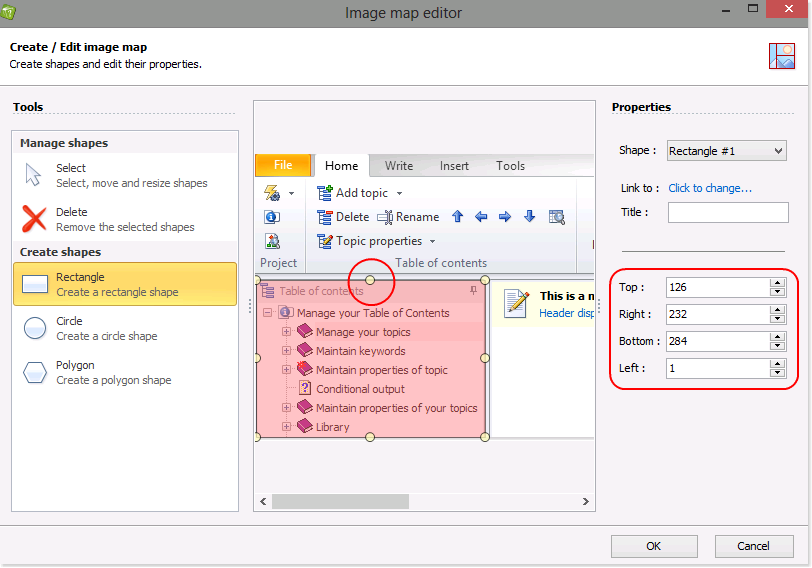
How to create an image map ›
HelpNDoc makes it easy to create image maps that allow readers to click on regions of an image to access hyperlinks. An image map can be used to document parts of a screenshot, a photography, a road map… by allowing readers to click parts of the image to access greater details about it.