Discover a treasure trove of invaluable insights and shortcuts to maximize your proficiency with the HelpNDoc help authoring tool. Unearth hidden gems, streamline your workflow, and unlock the tool’s full potential as you delve into a collection of expert tips and tricks. From mastering advanced formatting techniques to harnessing time-saving features, this tag is your guide to becoming a HelpNDoc virtuoso. Elevate your documentation creation process, boost efficiency, and craft polished, professional help content with ease. Explore the Tips and Tricks section and embark on a journey to become a HelpNDoc maestro.
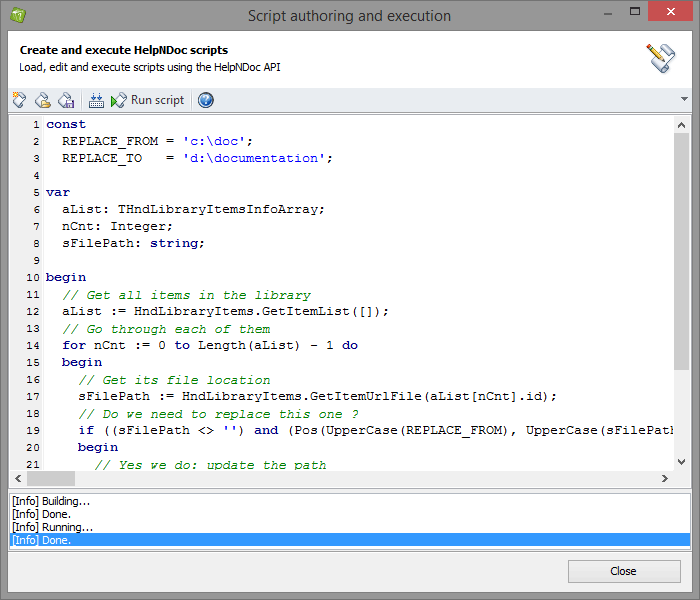
You can choose how your library items (pictures, movies, documents...) are handled by HelpNDoc: they can be included within your project, or they can be dynamically included at generation time, when you choose to build your final documentation files. Using the second option, you provide a path for your media items so that HelpNDoc can find and include them when needed. This is very useful to be able to handle those items from outside of HelpNDoc, share them with a third party software... However, a problem might occur if those items need to be moved on your hard drive or networked path: to make sure HelpNDoc can still find your media elements, you'll need to manually update all of them one by one. As this can be a very long, tedious and error-prone task, this is great use case for HelpNDoc's powerful script editor. Let's see how we can leverage it to quickly update the whole library in a few seconds
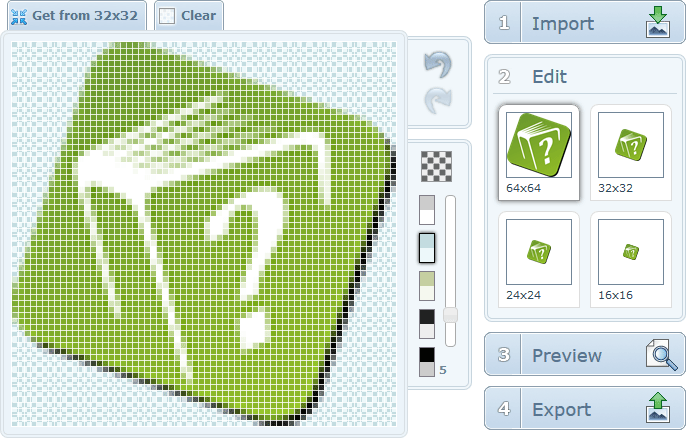
We were asked on FaceBook if it was possible to define a favicon to a HTML help build generated by HelpNDoc. This is a great question and the short answer is yes, absolutely, thanks to HelpNDoc's powerful template system. Let's see how this can be done by first creating our favicon, then our own custom template which will use that favicon
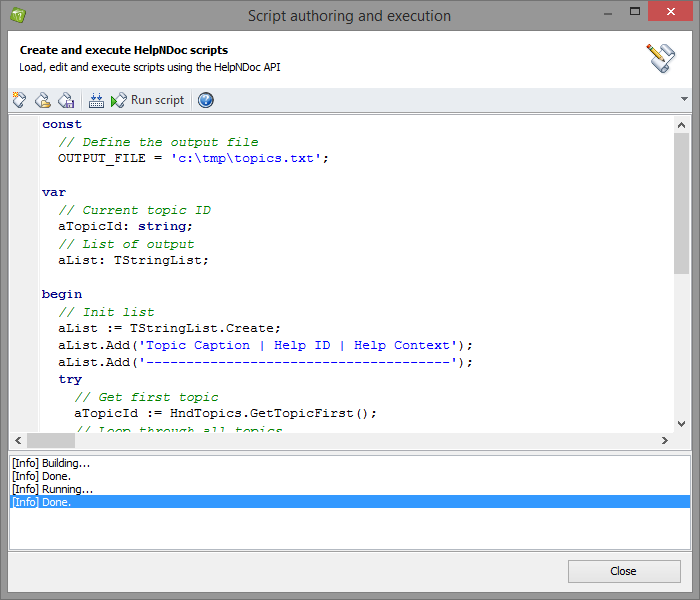
Once you've written your help file or documentation web-site, you'd usually like to be able to integrate it with your existing products: when users are having difficulties performing an action, they should be able to launch the help file and be presented with the correct associated topic explaining that specific action. For that purpose, Help Authoring Tools such as HelpNDoc provide two unique identifiers for each topic: an alpha-numeric Help ID and a numeric Help Context number. This makes it possible to reach a specific topic from your software application or web-site. But as a technical writer, you probably won't be in charge of "wiring" that application or web-site with the help file and you'd rather send a list of topic identifiers to the developers in charge. Thanks to HelpNDoc's very powerful script editor, you can easily do that!
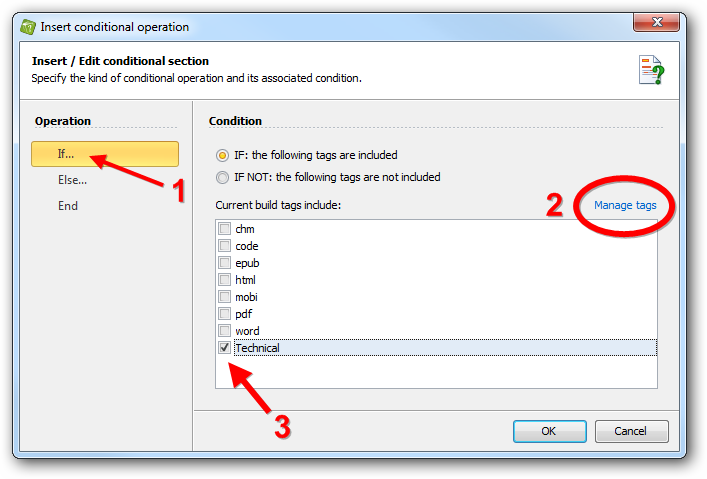
Thanks to HelpNDoc's powerful conditional generation feature and its amazing build system, it is easier and faster than ever to produce multiple variations of a master documentation. Just imagine writing a complete help file, manual, book or documentation and then choosing which parts to include in each final product: you'll begin to understand how powerful this feature can be to provide different variations of your master documentation to multiple clients, customers, partners... Read on to learn how to effectively use HelpNDoc's conditional generation system.