
Import Adobe RoboHelp projects
When importing a RoboHelp project, the Import RoboHelp project dialog is displayed. This dialog allows you to select the source project and define how its content will be imported into HelpNDoc.
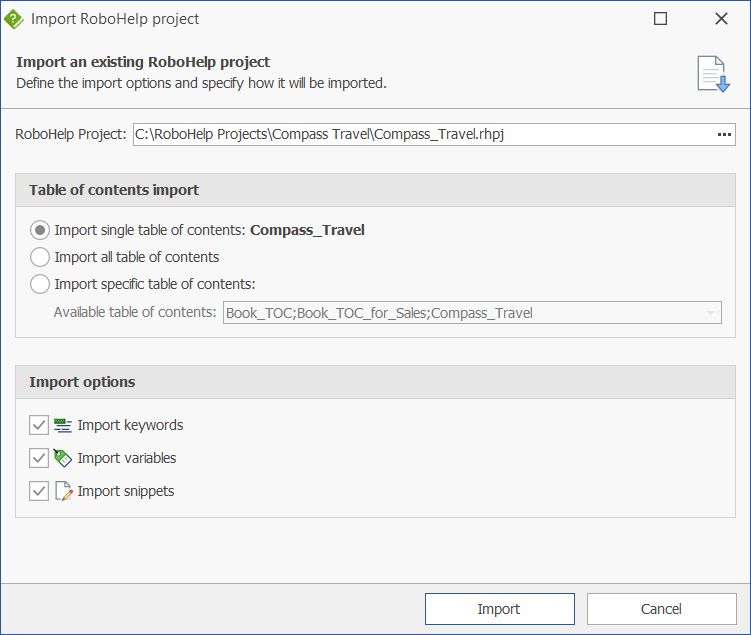
Overview of the user interface
RoboHelp project
Specify the path to the RoboHelp project file to import. Both modern .rhpj and legacy .xpj formats are supported.
Table of contents import
Choose how the table(s) of contents should be imported:
- Import single table of contents: Imports a single table of contents. For legacy projects, the default TOC is selected; for modern projects, the HTML TOC is used. The selected table of contents is displayed next to the option;
- Import all tables of contents: Imports all available tables of contents;
- Import specific table of contents: Lets you select a specific table of contents from the list of available ones.
Import options
Select which additional elements should be imported along with the topics:
- Import keywords: Imports index keywords and automatically links them to their associated topics;
- Import variables: Imports variables for reuse within the documentation;
- Import snippets: Imports reusable content snippets.
Note: Currently, imported variables and snippets are added to the library but are not automatically inserted into topics. This must be done manually after the import process.
Once the desired options are configured, click Import to start the process or Cancel to abort.