
Raw code library item
Raw code library items provide a way to add custom code or text to the generated documentation. They can include HTML, CSS, JavaScript, Markdown, or plain text content, either stored directly in the HelpNDoc project or loaded from an external file at generation time.
The content used depends on the output format:
- HTML content is exported as-is in HTML-based formats: CHM, HTML, ePub, Kindle, and Qt Help
- Markdown content is exported as-is in Markdown output
- Text content is exported as-is in all other formats, including Word and PDF
They can be useful in multiple situations:
- Insert advanced HTML widgets such as accordions, tabs, embedded YouTube or Vimeo videos, interactive components, or custom scripts
- Add custom HTML, CSS, or JavaScript to customize the behavior or appearance of HTML-based documentation
- Insert Markdown content, such as Mermaid diagrams, code samples, tables, or formatted notes, that should be exported unchanged when generating Markdown documentation
- Insert plain text content for formats that do not support HTML or Markdown output, such as Word and PDF
Note: Raw code library items replace the former HTML code library items. Existing HTML code library items can now be used as raw code items, with additional content options for Markdown and plain text output. Extra care should be taken when inserting HTML, CSS, or JavaScript code, as compatibility can vary between browsers, help viewers, and eBook readers.
Overview of the user interface
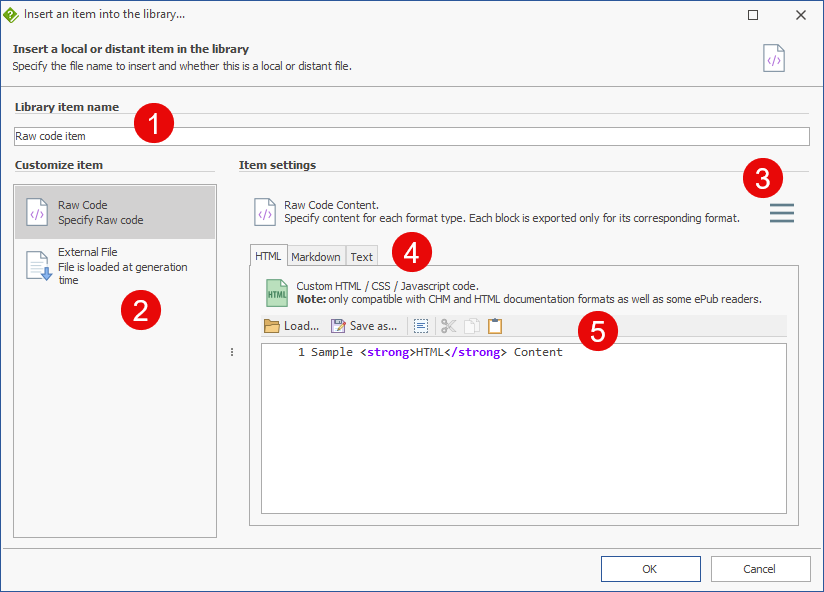
1. Library item name
Enter a unique name for the raw code library item. This name is used to identify the item in the library and when inserting it into topics.
2. Item type
Choose how the raw content should be provided:
- Raw Code: store the content directly in the HelpNDoc project and edit it using the built-in editor.
- External File: load the content from an external file when the documentation is generated. This is useful when the content is maintained outside HelpNDoc or shared between projects. See: Raw code external format
3. Actions menu
Click the menu button to access additional actions for the raw code content. From this menu, you can load raw code content from a file, save the current raw code content to disk, or clear the current content.
4. Formats tabs
Select the type of raw content to edit:
- HTML: enter custom HTML, CSS, or JavaScript code for HTML-based outputs such as CHM, HTML, ePub, Kindle, and Qt Help.
- Markdown: enter Markdown content, such as formatted text, tables, code blocks, or Mermaid diagrams, for Markdown output.
- Text: enter plain text content for other formats such as Word and PDF.
5. Code editor
Insert or edit the raw content for the selected format. The content is exported as-is in the documentation format it applies to, without conversion or validation by HelpNDoc.
HTML raw code
Use the HTML tab to enter custom HTML, CSS, or JavaScript code for HTML-based outputs such as CHM, HTML, ePub, Kindle, and Qt Help. This content is exported as-is.
Example:
<div class="custom-note">
<strong>Tip:</strong> This custom note is inserted as raw HTML.
</div>
<style>
.custom-note {
border: 1px solid #cccccc;
padding: 10px;
background: #f8f8f8;
}
</style>
Markdown raw code
Use the Markdown tab to enter Markdown content for Markdown output. This can include formatted text, tables, code blocks, Mermaid diagrams, or any Markdown syntax supported by the target Markdown processor. This content is exported as-is.
Example:
## Process overview
```mermaid
flowchart TD
A[Start] --> B[Generate Markdown documentation]
B --> C[Publish output]
```
```javascript
console.log("Sample code block exported as Markdown");
```
Text raw code
Use the Text tab to enter plain text content for formats that do not use HTML or Markdown, such as Word and PDF. This content is exported as-is.
Example:
Tip: This note is inserted as plain text in Word and PDF documentation.