
Snippet editor
The snippet editor is used to create and modify the rich text content of a snippet. It provides full formatting capabilities, allowing you to design reusable content with the same flexibility as standard topics. Snippets can include formatted text (such as font, color, bold, italic, alignment), styles, bulleted and numbered lists, tables, symbols, hyperlinks, and images.
Note: Images are stored directly within each snippet rather than in the central library. As a result, adding the same image to multiple snippets will increase both the project size and the size of the generated documentation.
Overview of the user interface
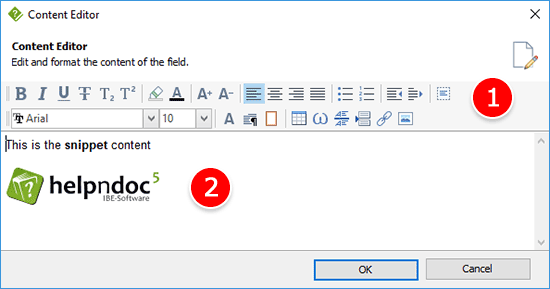
1. Ribbon toolbars
The ribbon bar provides quick access to all the tools needed to edit a snippet, organized into three main tabs:
- Home: The Home tab contains commands to finalize or discard your changes. You can save and close the editor or cancel and close to exit without applying modifications.
- Write: The Write tab provides all text editing and formatting tools. It includes clipboard operations (cut, copy, paste), font settings (typeface, size, emphasis, color), paragraph formatting (alignment, lists, indentation), and style selection to apply consistent formatting across your content.
- Insert: The Insert tab allows you to enrich your snippet by adding elements such as pictures, tables, symbols, horizontal lines, page breaks, hyperlinks, and anchors, making it easy to build structured and visually rich content.
2. Editor
The rich text editor is the main workspace where you create and edit the content of a snippet. It provides a WYSIWYG (What You See Is What You Get) environment, allowing you to format text, apply styles, and insert elements such as images, tables, and links while immediately previewing the final result.
3. Quick actions
At the top right of the ribbon, two quick action buttons provide a fast way to manage your changes while editing a snippet. The check mark button allows you to quickly save and close the snippet, applying all modifications. The cross button lets you cancel and close, discarding any unsaved changes. These shortcuts offer a convenient alternative to the commands available in the Home tab.
Working with styles
When working with styles in a snippet, the applied styles always follow the current style definitions of the project. This means that if a style is modified in the project, all snippets using that style will automatically reflect the updated settings. The changes will become visible the next time the snippet is opened in the editor, and they are also applied behind the scenes when generating the documentation, ensuring consistent formatting across the entire project without requiring manual updates.