
Working with lists
Lists provide a convenient way to organize related information within a topic. HelpNDoc supports both bulleted and numbered lists, including multiple indentation levels for creating nested lists.
Creating a list
To create a list:
- Place the cursor where the list should begin, or select the paragraphs that should be converted into a list.
- Open the Write ribbon tab.
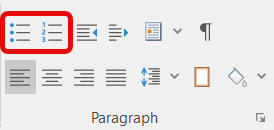
- In the Paragraph group, choose either a bulleted or numbered list.
- Start typing the first item, then press Enter to create the next item.
You can also select existing paragraphs and apply a list format to convert them into list items.
Bulleted lists
Bulleted lists are useful when the order of the items is not important.
Each paragraph in the list is displayed with a bullet. Press Enter at the end of an item to create another item at the same level.
Numbered lists
Numbered lists are useful for steps, procedures, rankings, or any content where the order of the items is important.
HelpNDoc automatically maintains the numbering as items are added, removed, or reorganized.
Creating nested lists
List items can be indented to create multiple levels of information.
Place the cursor in a list item and:
- Press TAB to increase its indentation level.
- Press SHIFT+TAB to decrease its indentation level.
The same commands can be used on multiple selected paragraphs to change their indentation level together.
Nested lists can contain multiple levels, making them useful for outlining procedures or organizing related information into groups.
Changing the list type
To change an existing list from bullets to numbering, or from numbering to bullets:
- Select the list items you want to modify.
- Open the Write ribbon tab.
- Choose the required list type from the Paragraph group.
HelpNDoc applies the new list format while preserving the content and indentation levels of the selected items.
Removing list formatting
To turn list items back into regular paragraphs, select the required items and deactivate their current bulleted or numbered list format from the Paragraph group on the Write ribbon tab.
The text is preserved while the list markers are removed.
Adjusting list indentation
List indentation can be adjusted using the indentation controls available in the Paragraph group of the Write ribbon tab.
For additional control over paragraph indentation, spacing, alignment, and other paragraph settings, see Paragraph properties.
Customizing bullets and numbering
Bulleted and numbered lists can be customized beyond the predefined styles.
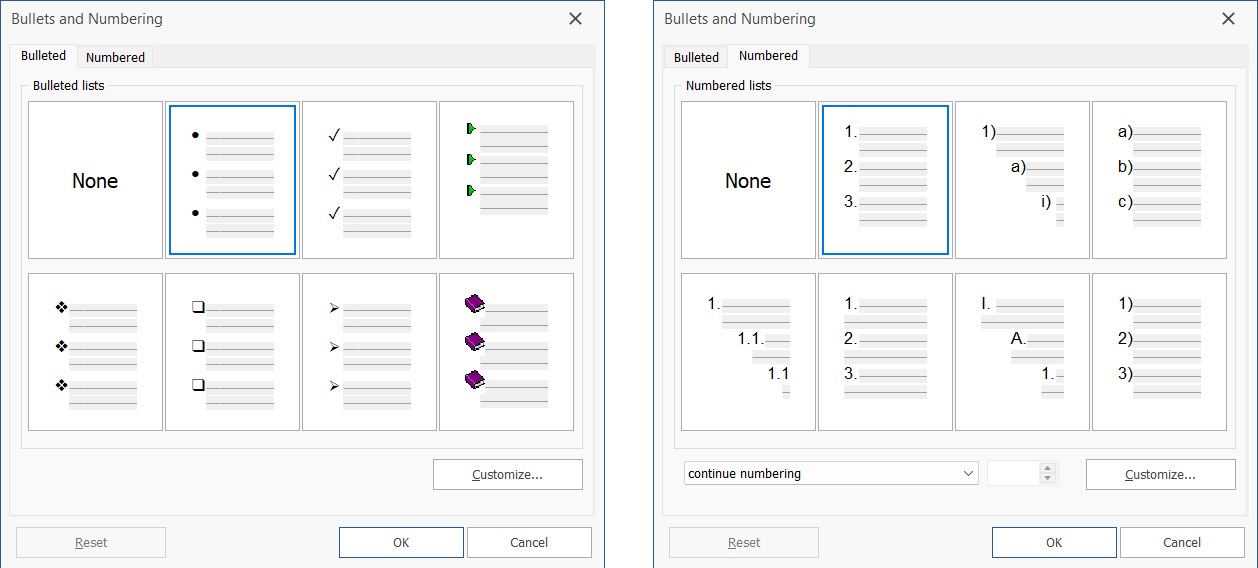
Right-click anywhere inside a list and select Bullets and Numbering.... The Bullets and Numbering dialog lets you choose from the available bulleted or numbered list styles, remove the current list style by selecting None, or open the advanced customization options.
For numbered lists, you can also control whether numbering continues from a previous list or starts independently.
Click Customize... to configure the list in greater detail.
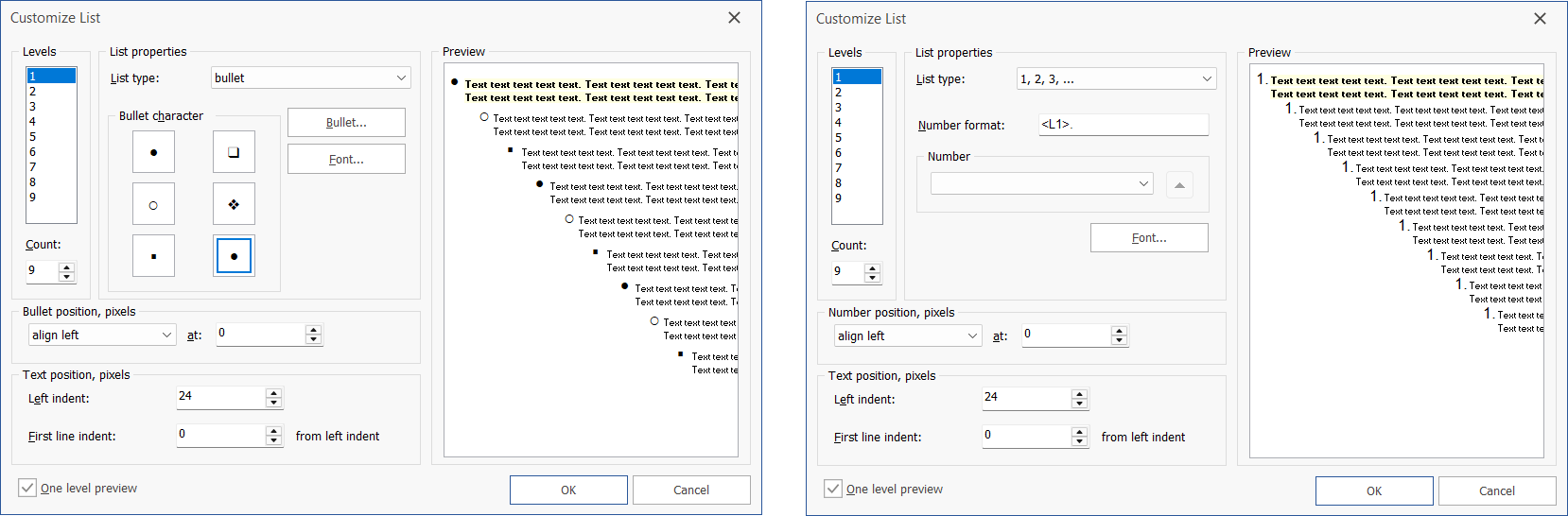
For each list level, you can define:
- The list type, such as a bullet or numbered format.
- The bullet character, including its font.
- The numbering format and number style.
- The horizontal position of the bullet or number.
- The text indentation and first-line indentation.
Up to nine list levels can be configured independently. The preview area shows how the resulting multi-level list will appear.
For bulleted lists, the Bullet... button can be used to choose a different bullet character, while Font... controls its appearance.
For numbered lists, the Number format field controls how the number is displayed, allowing surrounding characters such as periods or parentheses to be included.